
How to Use the SpaSphere Dashboard
Learn how to use the SpaSphere dashboard to monitor daily operations, track revenue, and manage action items.
9 min read
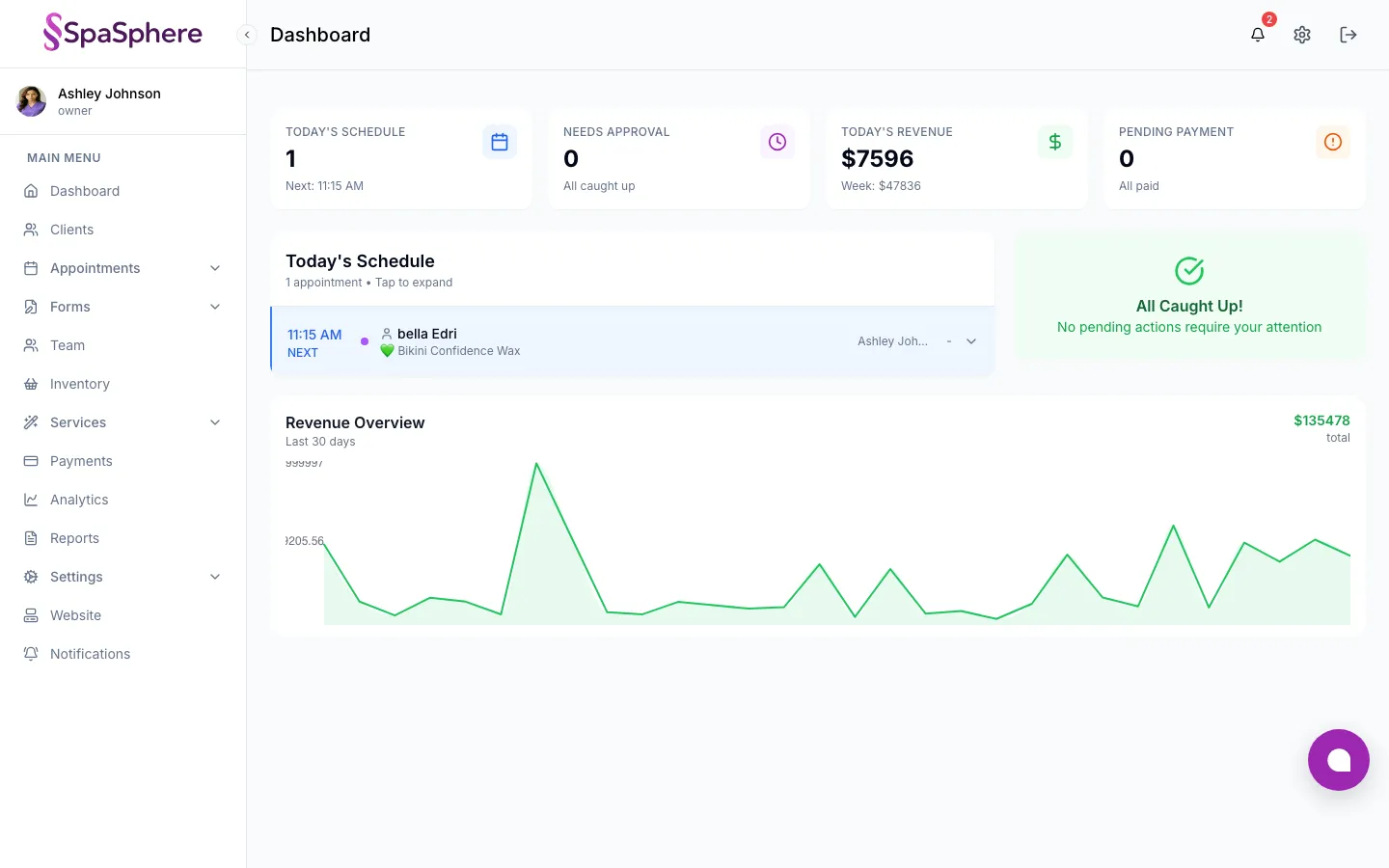
Your SpaSphere dashboard is the command center for your spa business. Every time you log in, it gives you a complete snapshot of your day -- from upcoming appointments and pending approvals to revenue performance and payment collection. This guide walks you through each section so you can make the most of your dashboard from day one.
Why This Matters for Your Spa
A well-organized dashboard directly impacts your bottom line. Spa owners who review their dashboard each morning catch missed payments, pending approvals, and scheduling gaps before they become lost revenue. The AI Daily Brief alone can increase average ticket size by surfacing upsell opportunities and product recommendations tailored to each client walking through your door. Real-time revenue tracking helps you spot slow days early enough to send a promotion or open up last-minute booking slots. When your front desk team has instant visibility into who is coming, what they need, and what to recommend, every client interaction becomes more personal -- and more profitable.
Key Capabilities
- Quick Stats at the top show today's appointment count, pending approvals, daily revenue, and outstanding payments at a glance
- Today's Schedule displays every appointment for the day in chronological order with client names, services, and payment status
- AI-Powered Daily Brief surfaces client history, contraindications, upsell opportunities, and provider tips when you expand any appointment
- Action Items panel highlights items that need your immediate attention, such as pending approvals and unpaid appointments
- Revenue Chart visualizes your revenue trend over the past several days so you can spot patterns
Understanding Your Dashboard
Review your Quick Stats
At the top of the dashboard, you will find four stat cards that summarize your day. Today's Schedule shows how many appointments are booked and when your next one starts. Needs Approval displays appointments awaiting your confirmation, with an animated alert when action is required. Today's Revenue reports how much you have earned today with a weekly comparison below it. Pending Payment counts appointments where payment has not been collected yet.
Each stat card is clickable. Selecting Today's Schedule takes you to the full calendar, while Needs Approval filters the calendar to show only pending-approval appointments.

Check Today's Schedule
Below the stats, the Today's Schedule panel lists every appointment in time order. Each row shows the appointment time, a status indicator dot, the client name, service booked, assigned team member, and a payment badge (Paid, Deposit, or Due).
The schedule highlights the current appointment with a purple accent bar and labels it NOW. The next upcoming appointment receives a blue accent bar labeled NEXT, so you always know where you stand.

Expand an appointment for the AI Daily Brief
Click any appointment row to expand it and reveal the AI Daily Brief. This AI-generated summary pulls together everything you need to know about the client before their visit. It includes:
- Contraindications flagged in red so you notice safety concerns immediately
- Client segment badges such as New Client, Returning, VIP, or At Risk
- Visit count and whether this is the client's first appointment
- Provider Tips with actionable suggestions for the session
- Key Concerns the client has mentioned previously
- Suggested Questions to ask during the appointment
- Product Recommendations with margin priority indicators
- Upsell Opportunities with talking points your team can use naturally
You can click the client name within the expanded view to jump directly to their full client profile.
Handle Action Items
To the right of the schedule (or below it on mobile), the Action Needed panel groups tasks into two sections. Pending Approvals lists clients whose appointments require your confirmation along with the scheduled date. Pending Payments shows appointments from today that still have outstanding balances, displayed with the dollar amount due.
Click any item to navigate to the relevant client profile. When all tasks are resolved, the panel switches to a green "All Caught Up!" message.

Monitor the Revenue Chart
At the bottom of the dashboard, the Revenue Overview chart plots your daily revenue over the past week or more. Hover over any data point to see the exact revenue figure for that day. The chart header shows your total revenue for the period, helping you track trends at a glance.

Collapse the sidebar for more room
Click the arrow button at the top of the sidebar to collapse it into icon-only mode. This gives you more screen space for the dashboard, which is especially valuable on smaller laptop screens where you want to see your full schedule without scrolling. The sidebar remembers your preference across sessions.
Navigating the Sidebar
The sidebar is your primary navigation for the entire SpaSphere platform. It is organized into a single Main Menu section with the following items:
- Dashboard -- Your home screen (this page)
- Clients -- View, add, search, and manage client profiles
- Appointments -- Access the calendar and the AI Daily Brief
- Forms -- Manage intake forms for new and returning clients
- Team -- View and manage your team members
- Inventory -- Track products and stock levels
- Services -- Manage services, packages, treatment plans, and categories
- Payments -- View and process payments
- Analytics -- Dive into business metrics and client retention data
- Reports -- Generate business reports
- Settings -- Configure business details, appointment rules, tax, Stripe Connect, billing, locations, and integrations
- Website -- Customize your public booking website
- Notifications -- Manage in-app notification preferences
When the sidebar is collapsed, hovering over an icon with sub-items reveals a flyout menu so you can still access nested pages without expanding the sidebar.
Mobile navigation
On screens smaller than 768px, the sidebar automatically collapses to icon mode to maximize your workspace. You can tap the toggle button to expand it temporarily. This responsive behavior ensures spa owners and front desk staff can manage the dashboard from a tablet between appointments without losing any functionality.
Frequently Asked Questions
Related Documentation
Ready to try this in your spa?
$1 for 30 days. No contracts. We migrate everything for you.