
How to View and Edit Client Profiles in SpaSphere
Explore client profiles in SpaSphere including personal info, AI recommendations, packages, gift cards, and orders.
9 min read
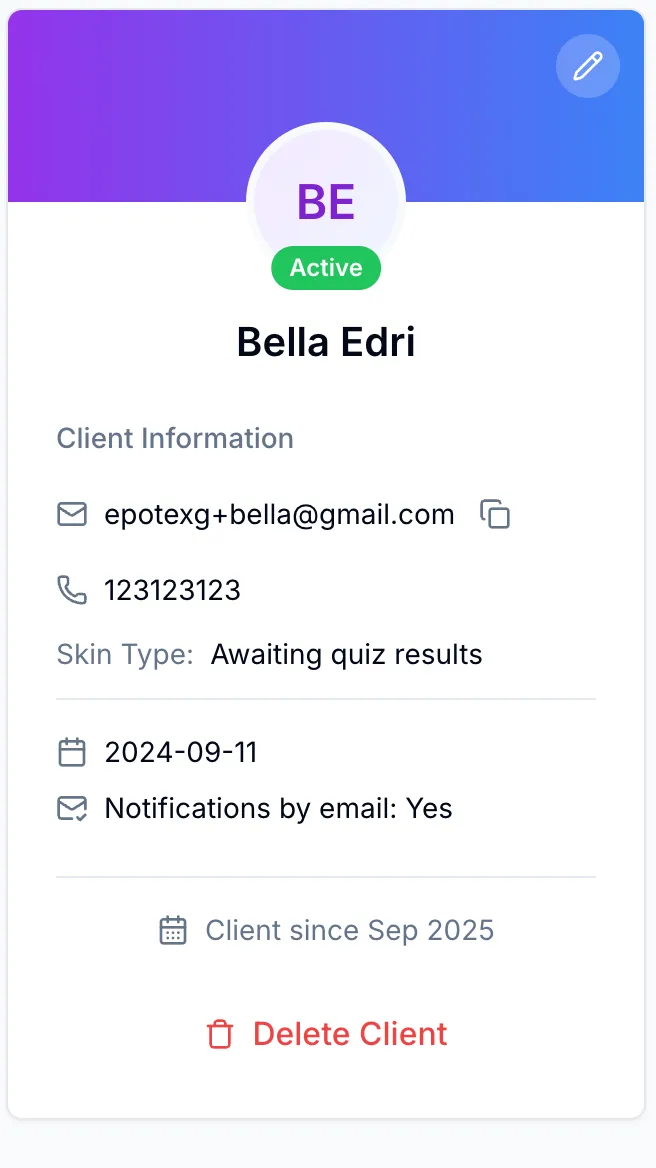
Every client in SpaSphere has a dedicated profile page that brings together everything your team needs to deliver personalized care. From contact details and skin type to AI-powered recommendations, packages, gift cards, and order history, the client profile is your single source of truth for each person you serve.
Why This Matters for Your Spa
Personalization is what separates a forgettable appointment from a client who rebooks and refers friends. Spas that use centralized client profiles to track preferences, history, and health data report 20-35% higher client retention rates compared to those relying on memory or scattered paper files. When your esthetician can pull up a client's skin type, past treatments, contraindications, and AI-generated product recommendations in one screen, consultations are faster and upsell conversations feel natural rather than pushy. Packages and gift cards tracked at the profile level also reduce revenue leakage -- you always know exactly how many sessions remain and which cards still have a balance. For multi-provider spas, a complete client profile means any team member can deliver consistent care, even if the client's usual provider is unavailable.
Key Capabilities
- Profile sidebar with avatar, contact information, skin type, date of birth, email notification status, and client tenure
- AI Recommendations powered by the SpaSphere recommendation engine, showing personalized service and product suggestions
- Seven tabbed sections -- History, Notes, Skin SOAP Notes, Intake Forms, Orders, Packages, and Gift Cards
- Quick edit and delete actions directly from the profile sidebar
- Deep-link tabs so you can share or bookmark a specific section of a client's profile
Navigating the Client Profile
Open a client profile
Navigate to Clients in the sidebar and click any client row in the table. You are taken to the client profile page, which is split into a sidebar on the left and a tabbed content area on the right.

Review the profile sidebar
The sidebar card shows the client's avatar (or generated initials), full name, and an Active status badge. Below the name you will find:
- Email with a copy-to-clipboard button for quick access
- Phone number
- Skin Type -- Displays the Fitzpatrick classification or "Awaiting quiz results" if not yet set
- Date of Birth
- Email notifications preference (Yes or No)
- Client since date showing when the record was created
If the client's email has bounced, a warning banner appears explaining that emails to this client are paused.
View AI Recommendations
Above the tabs, the Recommendations section displays up to three AI-generated recommendation cards for the client. These suggestions are produced by the SpaSphere recommendation engine, which analyzes the client's service history, preferences, and profile data.
Click View All to expand the recommendations panel, or click an individual card to see the full recommendation detail in a slide-over view. Each recommendation includes a reason for the suggestion and relevant context from the client's history.

Explore the tabbed sections
The main content area organizes client data into seven tabs. Click any tab to switch views. The URL updates to reflect the selected tab, so you can bookmark or share a direct link to a specific section.
- History -- A table of all past appointments showing the service name, team member, date, and appointment notes
- Notes -- Internal notes your team has added, plus appointment notes from past visits
- Skin SOAP Notes -- Clinical SOAP (Subjective, Objective, Assessment, Plan) documentation linked to appointments
- Intake Forms -- Digital intake forms the client has submitted
- Orders -- A filterable table of all orders and invoices associated with the client, with status filtering (All, Paid, Pending)
- Packages -- Service packages the client is enrolled in, showing remaining sessions and expiration dates
- Gift Cards -- Gift cards issued to the client, including balance tracking and a balance lookup tool
Edit the client profile
Click the pencil icon in the top-right corner of the profile sidebar to open the edit form. Update any field -- name, email, phone, date of birth, gender, biological sex, skin type, or notification preferences -- and click Update Client to save your changes.
Use AI Recommendations to increase average ticket size
Before a client's appointment, open their profile and review the AI Recommendations. These data-driven suggestions give your providers natural conversation starters that lead to add-on services and product purchases. Spas that review recommendations before each appointment consistently report higher average ticket sizes because the upsell feels helpful and personalized rather than scripted. The recommendation engine improves over time as more appointment and purchase data is recorded.
Working with Client Packages
The Packages tab shows every service package the client is enrolled in. Each package card displays the package name, enrollment date, expiration date (if applicable), and a status badge (Active, Expired, or Completed).
Inside each package card, you see the individual services included and how many sessions remain. Click Use 1 next to a service to record a session usage. When all sessions for all services in a package have been used, the status automatically changes to Completed.
To enroll a client in a new package, click Add Package at the top of the Packages tab and select from your configured service packages.

Managing Client Gift Cards
The Gift Cards tab provides a complete view of gift cards associated with the client. Each card displays the last four digits of the code, current balance, original balance, a usage progress bar, expiration date, and status (Active, Depleted, Expired, or Deactivated).
At the top of the tab, the Check Gift Card Balance tool lets you look up any gift card by its code to verify its balance instantly. This is useful at checkout when a client presents a gift card.
You can Create Gift Card to issue a new card, Regenerate Code if a code needs to be replaced, or Deactivate a card if it has been lost or compromised.
If the client has purchased gift cards for other people, those appear in a separate Purchased for Others section below.
Gift card codes are partially masked for fraud prevention
For security, SpaSphere only displays the last four characters of each gift card code in the interface. The full code is provided to the client at the time of purchase. This partial masking prevents unauthorized use if someone glimpses the screen, while still giving your front desk enough information to verify the card during checkout. If a code is compromised, use the Deactivate action and issue a replacement with Create Gift Card.
Viewing Client Orders
The Orders tab shows a combined view of all invoices and orders for the client. You can filter by status using the dropdown -- All Orders, Paid, or Pending. Click any row to view the order detail or proceed to checkout for pending invoices.
Frequently Asked Questions
Related Documentation
Ready to try this in your spa?
$1 for 30 days. No contracts. We migrate everything for you.