
How to Track Client Notes and Treatment History
Track appointment history, write internal notes, and create Skin SOAP notes for comprehensive client documentation.
10 min read
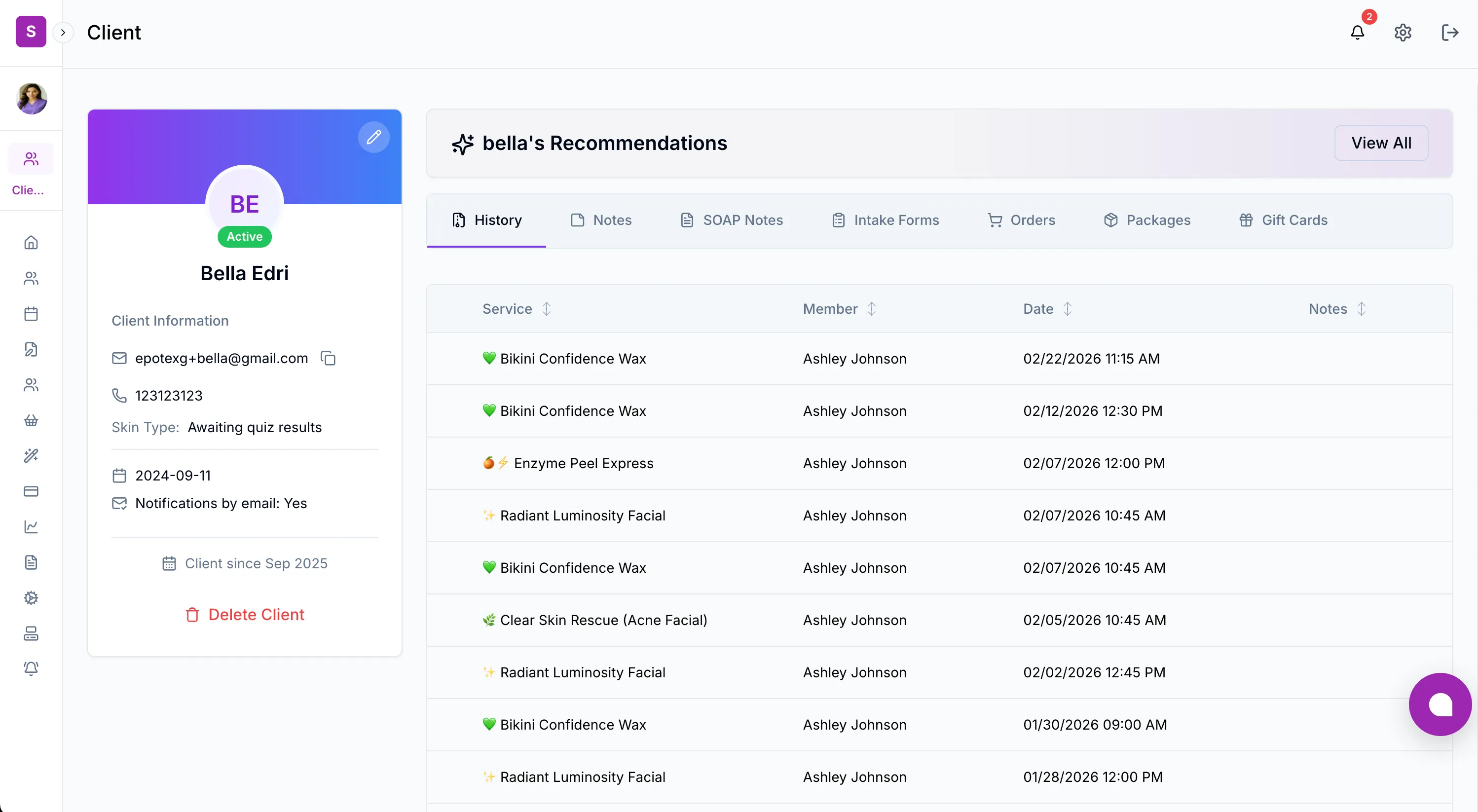
Thorough documentation is essential for delivering consistent, high-quality care. SpaSphere gives you three complementary tools for tracking client interactions: Appointment History for a chronological record of every visit, Internal Notes for free-form observations and reminders, and Skin SOAP Notes for structured clinical documentation. Together, these features ensure that any team member can pick up where another left off.
Why This Matters for Your Spa
Incomplete client documentation is one of the most expensive hidden problems in spa operations. When a provider cannot see what was done in a previous session -- which products were used, what pressure the client preferred, or whether a contraindication was flagged -- the result is repeated questions, inconsistent care, and clients who feel like they are starting over every visit. Industry surveys show that 60% of clients who leave a spa cite "feeling like a number" as a top reason, and poor documentation is usually the root cause. On the clinical side, missing Skin SOAP notes create real liability exposure for practices performing laser treatments, chemical peels, or injectables. Proper documentation also directly feeds SpaSphere's AI recommendation engine: the more complete your history and notes, the better the AI's upsell suggestions and contraindication warnings become, turning documentation from an administrative burden into a revenue driver.
Key Capabilities
- Appointment History table showing every past visit with service name, team member, date, and notes
- Internal Notes that your team can add at any time, independent of appointments
- Appointment Notes automatically linked to specific visits for context
- Skin SOAP Notes (Subjective, Objective, Assessment, Plan) with a dedicated editor for clinical documentation
- Full audit trail so you can see who wrote each note and when
Viewing Appointment History
Open the History tab
Navigate to Clients in the sidebar, click a client row to open their profile, and select the History tab. This tab is the default view when you open a client profile.

Review past appointments
The history table displays four columns:
- Service -- The name of the service that was performed
- Member -- The team member who provided the service
- Date -- The appointment date and time, formatted in your location's timezone
- Notes -- Any notes that were added to the appointment
Appointments are listed with the most recent at the top, so you can quickly see the client's latest visits and the services they received.
Use history to prepare for visits
Before a client's next appointment, scan their history to understand what services they have received, how frequently they visit, and any notes from previous sessions. This context helps your team provide continuity of care and avoid repeating questions the client has already answered.
History powers AI recommendations and revenue growth
The appointment history is one of the primary data sources that powers the AI Recommendations on the client profile and the AI Daily Brief on the dashboard. The more complete your history records are, the better the AI becomes at suggesting relevant services and products. Spas with thorough appointment records see significantly more accurate upsell suggestions, which translates directly into higher average ticket sizes without your team needing to memorize every client's preferences.
Working with Internal Notes
Internal notes are free-form text entries that your team can add to a client's record at any time. Use them for observations, preferences, follow-up reminders, or anything else that does not fit into a structured form.
Open the Notes tab
From the client profile, click the Notes tab. You will see two sections: Internal Notes at the top and Appointment Notes below.
Add a new internal note
Click the Add Note button in the top-right corner of the Internal Notes section. A modal appears where you can type your note. Click save when you are done.

Review appointment notes
Below the internal notes, the Appointment Notes section displays notes that were recorded as part of specific appointments. Each entry shows the note content along with the associated appointment details. Click any appointment note row to open the appointment modal with full context, including service details and scheduling information.
Delete a note
If a note is no longer relevant, click the delete action on the note row. Confirm the deletion in the dialog that appears. Deleted notes cannot be recovered.
Internal vs. Appointment Notes -- when to use each
Internal notes are general-purpose and not tied to any specific appointment. Use them for client preferences (preferred room temperature, product sensitivities, personal milestones like birthdays), follow-up reminders, and observations that apply across visits. Appointment notes are created during or after a specific visit and are linked to that particular appointment, making them ideal for session-specific details like treatment parameters, product usage, and immediate reactions. Both types appear on the Notes tab so your team always has the complete picture, and both feed into the AI recommendation engine for better suggestions.
Creating Skin SOAP Notes
Skin SOAP Notes provide a structured format for clinical documentation that is standard in healthcare and aesthetics. SpaSphere includes a dedicated Skin SOAP Note editor with four sections.
Open the Skin SOAP Notes tab
From the client profile, click the Skin SOAP Notes tab. You will see a table of existing Skin SOAP Notes along with the client's appointment history for reference.

Create a new Skin SOAP Note
Click Add Skin SOAP Note in the top-right corner. This opens a dedicated Skin SOAP Note editor page with four structured sections:
- Subjective -- Record what the client tells you about their concerns, symptoms, goals, and medical history
- Objective -- Document your clinical observations, measurements, and findings during the examination
- Assessment -- Summarize your professional analysis based on the subjective and objective data
- Plan -- Outline the treatment plan, recommended follow-up, home care instructions, and next steps
Complete patient information
The Skin SOAP Note editor includes a Patient Info section that pulls key details from the client's profile for reference while you write. This ensures you have the relevant context without switching between screens.
Save and review
Save the Skin SOAP Note when you have completed all sections. The note appears in the Skin SOAP Notes tab table and can be opened for review at any time by clicking its row.
Skin SOAP Notes protect your practice from liability
For practices performing clinical treatments -- including laser therapy, injectables, microneedling, and chemical peels -- Skin SOAP Notes are not just good practice, they are a critical liability shield. In the event of an adverse reaction or client dispute, documented Skin SOAP notes demonstrating proper assessment and informed treatment planning are often the difference between a defensible position and an unprotected one. If your practice is subject to healthcare documentation regulations, ensure that your team follows your compliance requirements when creating Skin SOAP Notes. SpaSphere provides the structure, but the content quality and completeness remain your team's responsibility.
Best Practices for Client Documentation
Following consistent documentation practices across your team leads to better client outcomes and smoother handoffs between providers.
- Write notes promptly -- Record observations during or immediately after an appointment while details are fresh. Notes written the same day are significantly more accurate than those written from memory days later.
- Be specific -- Instead of "client liked the treatment," note specifics like "client preferred medium pressure during the deep tissue portion and requested more focus on upper back"
- Use Skin SOAP Notes for clinical services -- For treatments involving medical-grade devices, injectables, or skin procedures, the structured SOAP format ensures nothing is overlooked and creates a defensible clinical record
- Keep internal notes for non-clinical observations -- Client preferences like preferred appointment times, product sensitivities, or personal milestones are best captured as internal notes
- Review history before appointments -- Make it a habit to check the last two or three visits before a client arrives. The AI Daily Brief on the dashboard does this automatically, but reviewing the full notes tab gives deeper context
Frequently Asked Questions
Related Documentation
Ready to try this in your spa?
$1 for 30 days. No contracts. We migrate everything for you.